

Removing unnecessary or harmful elements from your website is essential because cluttered pages slow loading times, frustrate users, and negatively impact search engine rankings. Visitors expect fast, mobile-friendly experiences, and eliminating outdated features, heavy media, or unused scripts helps improve performance significantly.
Cleaning up intrusive, broken, or irrelevant elements also boosts trust and lowers bounce rates, especially on mobile devices. By removing accessibility barriers, you make your site usable for everyone while reducing potential compliance risks. A streamlined website also reduces server load, improves stability, and creates a smoother browsing experience. 13 things that should be deleted from your site promptly are shown in below table.
| No. | Item to Remove | Description | Why It’s Harmful | Benefits of Removing it |
|---|---|---|---|---|
| 1. | Auto-Playing Media | Videos or audio that play without user interaction. | Distracts users and slows load time. | More control for users and faster performance. |
| 2. | Large PDFs or Downloads | Oversized files are placed directly on pages. | Increases load time and wastes bandwidth | Faster loading and easier navigation |
| 3. | Pop-Ups Overload | Too many intrusive pop-ups on a page. | Annoys visitors and increases bounce rate. | Higher engagement and smoother browsing |
| 4. | Outdated or unclear cookie/consent banner | Old or confusing consent messages | Confuses users and risks compliance issues | .Improves trust and legal compliance |
| 5. | Slow-Loading JavaScript | Heavy or unnecessary JS files that increase load time. | Slows down performance and frustrates users. | Faster loading speed and improved user experience. |
| 6. | Broken Links | Links that lead to 404 or unavailable pages. | Hurts SEO and reduces trust. | Stronger SEO and professional credibility |
| 7. | Excessive Ads | Too many display ads or popunder ads. | Creates a spammy experience and reduces trust. | Better user retention and higher engagement. |
| 8. | Auto-playing carousels and sliders | Slides that start automatically | Annoying, reduces engagement, and can affect accessibility | Increases readability and user control |
| 9. | Tiny, hard-to-read fonts and poor contrast | Small text and low contrast colors | Hard to read, decreases accessibility | Improves usability and accessibility for all users |
| 10. | Weak CTAs | Buttons or messages that are unclear or poorly placed. | Reduces conversions and user clarity. | Better engagement and stronger conversions. |
| 11. | Deprecated HTML/CSS and inline styles | Old coding practicesOutdated Flash animations or banners | Slows site, harder to maintain, may break features | Faster, more maintainable, and modern design |
| 12. | Overly long privacy policies in inaccessible language | Complicated legal text | Frustrates users and reduces conversions | Enhances support, trust, and conversion rates |
| 13. | Hidden contact information or no clear support channels | Hard-to-find support info | Frustrates users and reduces conversions | Enhances support, trust, and conversion rates |
Why this matters
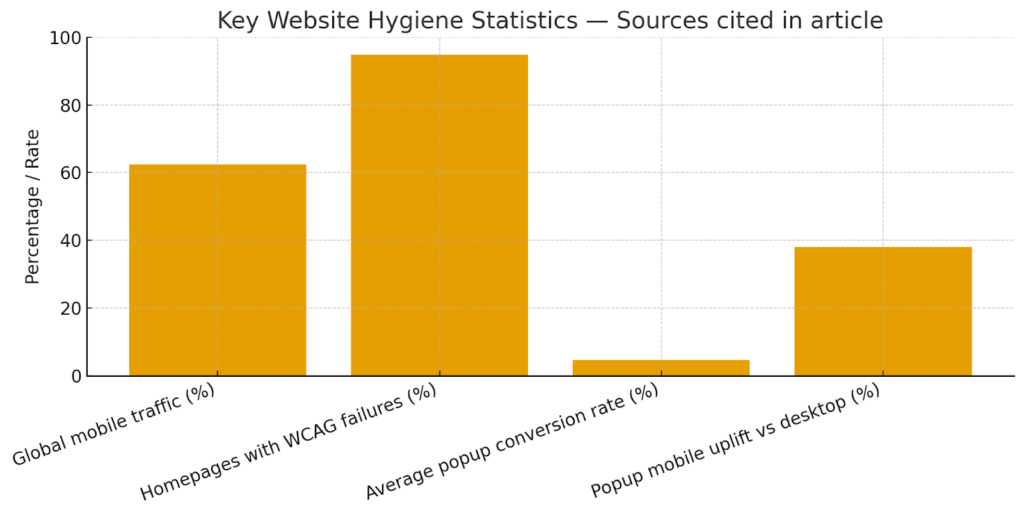
Removing unnecessary or harmful elements from your website is essential because modern users are impatient, privacy-aware, and browsing on many different devices. Anything that slows pages down, interrupts their experience, creates accessibility or security concerns increases bounce rates and damages trust. The stats below highlight a few load-bearing points you’ll see referenced in the article:
- Global mobile web traffic is high (≈ 62.5%), so mobile-first experiences matter.
- Automated scans show ~94.8% of top homepages still have detectable WCAG failures, meaning accessibility issues are extremely common.
- Average popup conversion rates hover around 4.65% , popups can convert but are intrusive if misused; mobile popup campaigns show big uplifts vs desktop.
- Page speed significantly affects bounce and conversions, even small delays reduce conversions.
A small chart is shown below summarizing those statistics for quick reference.
Now ,let’s discuss the 13 points that should not be included on a website.
1. Autoplaying audio or video (especially with sound)
Autoplay with sound is jarring, interrupts the user experience, and increases bounce rate particularly on mobile and in quiet environments. Users prefer control over media they consume. Studies and UX research repeatedly advise against forced playback. Many accessibility guidelines also warn that unexpected audio creates barriers for screen reader users because it competes with the assistive technology’s audio output. Your aim should always be to make your website a revenue-generating asset.
What to do instead
- Use muted autoplay for previews (if necessary) and show a clear play button to enable sound.
- Lazy-load video players and only load them after user interaction (reduces page weight and improves speed).
- Offer transcripts or captions for accessibility.
2. Large, unoptimized images and media files
Heavy images are one of the most common causes of slow page load times. Slow pages hurt SEO, user engagement, and conversion. Page speed case studies demonstrate measurable losses resulting from even slight delays. Unoptimized hero images especially impact Largest Contentful Paint (LCP), a major Core Web Vitals metric.

Quick fixes
- Serve responsive images (srcset) and modern formats (WebP/AVIF).
- Use lazy loading (loading=”lazy”) for offscreen images.
- Compress images and use a CDN.
3. Intrusive pop-ups and interstitials (especially at page load)
Pop-ups can convert, but intrusive pop-ups (blocking content immediately on arrival) frustrate users and may hurt rankings if they cover content on mobile. While the average pop-up CVR is ~4.65%, the ROI depends on timing and user intent. Google’s mobile interstitial penalty still applies to disruptive layouts.
Better approach
- Use exit-intent or scroll-triggered modals, and don’t show them immediately on page load.
- For mobile, create popups optimized for small screens, or avoid them for certain pages.
- Use sticky bars or subtle opt-ins for less friction.
4. An outdated or unclear cookie/consent banner
Incorrect cookie handling can result in regulatory fines; enforcement actions and large fines (e.g., recent CNIL fines) show regulators are actively penalizing non-compliance. Cookie banners that “push” consent (dark patterns) are also legally risky. Outdated scripts may drop trackers before consent, which violates GDPR.
What to do
- Use consent management platforms (CMPs) supporting granular consent and remembering user choices.
- Ensure cookies are not dropped before consent for tracking cookies.
- Add links to privacy policy and cookie preferences.
5. Slow-loading JavaScript libraries and unused scripts
Page speed and Core Web Vitals are critical ranking and UX factors. However, third-party scripts, analytics, chat widgets, and A/B tools can significantly increase Time to Interactive. Removing unused scripts improves performance, stability, and reduces security exposure.
Action steps
- Audit third-party scripts; defer or async-load them.
- Remove libraries no longer used and combine/minify where sensible.
- Use browser dev tools to check script weight and loading time.
6. Under construction pages, broken links, or placeholder content
Broken pages damage user trust, navigation, and SEO. Search engines and users prefer complete content; placeholders make your site look unprofessional. Broken links (404s) signal poor maintenance and reduce crawl efficiency.
Fixes
- Use 301 redirects or publish a helpful temporary message (with ETA and contact).
- Run periodic link checks (crawler tools) and fix 4xx/5xx errors.
- Replace placeholder text with at least a basic but informative version.
7. Excessive or irrelevant advertising
Ads can reduce credibility, increase page weight, and create a noisy experience. Ad overload is linked to higher bounce rates and lower engagement. Too many ad scripts also slow down rendering, especially on mobile.
What to keep
- Limit ads above the fold.
- Prefer relevant, non-intrusive ads and maintain a balanced ad-to-content ratio.
- Avoid autoplaying video ads with sound.

8. Auto-playing carousels and sliders
Carousels often hide content and reduce discoverability. They also increase DOM size and can be slow, especially with large images. Many users never interact with slides beyond the first one. Studies show that even when sliders are used, users often ignore them due to “banner blindness.”
Alternatives
- Present a single focused hero message or a static curated image with a clear CTA.
- If you must use carousels, ensure they are accessible, keyboard-navigable, and user-controlled.
- Reduce the number of slides and optimize images.
9. Tiny, hard-to-read fonts and poor contrast
Low contrast and small fonts are accessibility failures (detectable in automatic WCAG audits), and they alienate users with low vision or reading difficulties. Automatic scans show accessibility issues on most sites. Hard-to-read text also reduces reading time and comprehension.
Remedy
- Follow WCAG 2.1 guidelines for contrast and scalable fonts.
- Use rems for scalable typography and test zoom up to 200%.
- Ensure line height and spacing are comfortable for readability.
10. Excessive form fields and unclear CTAs
Long forms and confusing CTA wording reduce conversions. Ask for the minimum required information; less friction equals higher completion rates. Users often abandon forms when they feel overwhelmed or when required fields seem unnecessary.
Best practice
- Use progressive profiling and split long forms into manageable steps.
- Make CTAs specific and action-oriented (e.g., “Get my 7-day plan”).
- Reduce cognitive load with autofill, validation hints, and clear labels.
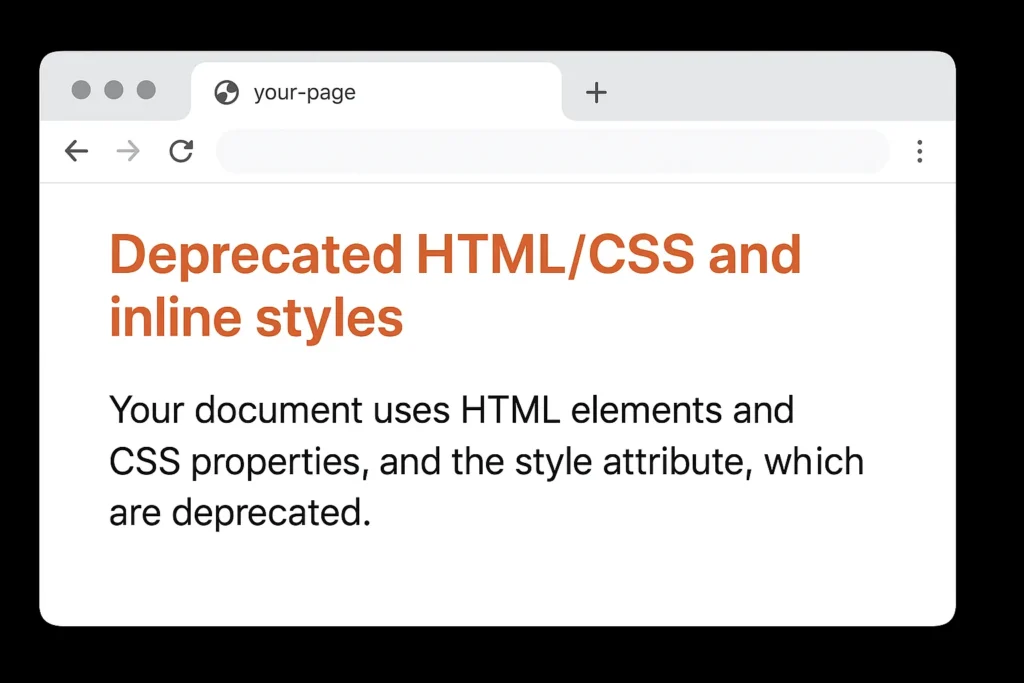
11. Deprecated HTML/CSS and inline styles
Old code increases maintenance cost and can cause rendering inconsistencies across browsers. Inline styles make themes hard to update and bloat HTML. Deprecated tags may also break accessibility or reduce SEO clarity.
How to fix
- Refactor to modern semantic HTML and centralized CSS.
- Use audits (Lighthouse) to identify render-blocking CSS.
- Move inline styles to external stylesheets.
12. Overly long privacy policies in inaccessible language
Legalese-only privacy pages may comply legally but fail to build trust. Users often prefer short, clear summaries plus a full policy for details. Overly long pages also discourage users from reading essential information about consent and data collection.
What to publish
- Add a summary box at the top with key points (data collected, retention, contact).
- Provide machine-readable privacy metadata if possible.
- Use plain language, headings, and bullet points for clarity.
13. Hidden contact information or no clear support channels
Customers expect quick ways to contact you. Hidden contact methods reduce conversions and increase friction. Lack of transparency signals a lack of trustworthiness and can impact both sales and customer satisfaction.
Fixes
- Place contact info in the footer and a “Contact” link in the main menu.
- Offer multiple channels (email, phone, chat), but ensure your response SLAs are realistic.
- Add a simple FAQ or support hub for common questions.
Quick technical audit checklist (apply in 30–90 minutes)
- Run Lighthouse / PageSpeed Insights and note Time to Interactive (TTI) and Largest Contentful Paint (LCP).
- Use WebAIM or Axe to scan for accessibility failures.
- Audit third-party scripts and disable non-essential ones.
- Compress and serve responsive images; enable lazy loading.
- Check cookie consent flows and ensure no tracking cookies load before consent.
FAQs
1. Will removing pop-ups hurt my email sign-ups?
Not necessarily. Pop-ups can be effective when used responsibly (exit-intent, delay after X seconds, or after scroll). But intrusive, immediate pop-ups can harm UX and SEO on mobile. Test alternatives like inline CTAs and dedicated landing pages.
2. How do I check if my website is accessible?
Start with automated tools (WebAIM, Axe, Lighthouse accessibility audit) and follow up with manual testing: keyboard navigation, screen reader checks, and at least a few real users with accessibility needs.
3. Are cookie consent tools necessary for small websites?
If you serve users in jurisdictions with privacy laws (EU, UK, some US states), you should implement compliant consent. Recent enforcement actions show regulators will fine non-compliant sites, and even large fines for major sites have been handed down.
4. How much speed improvement can I expect by removing unused scripts?
It varies, but removing heavy third-party scripts and defer-loading can often shave seconds off Time to Interactive, which directly improves engagement and conversions. Case studies show measurable uplifts after optimization.
5. My site needs to show ads. How do I balance revenue with UX?
Prioritize user-friendly placements: avoid full-screen interstitials on mobile, limit above-the-fold ads, and A/B test placements. Consider subscription or ad-free options for loyal users.
6. What’s the best way to make a site mobile-first?
Design and test starting from the narrow screen: optimize image sizes, reduce DOM complexity, use responsive breakpoints, and ensure touch targets are large enough. Monitor real-user metrics (RUM) to spot issues.